Guide · 9 November 2026
FM27 tactics: the Tactics assistant that mixes two playing styles
To build coherent FM27 tactics on your Mac, open the “Tactics assistant” in MacLibero RT 1.0.11: pick an in-possession style and an out-of-possession style from FM 27's 10, let the assistant suggest an XI that fits your squad, tweak it in “My line-up”, let it set up every player in your squad position by position, then export the lot to FM 27 as a tactic file the game loads. Along the way it flags the flank nobody is covering and offers a fix, taken from your own squad.
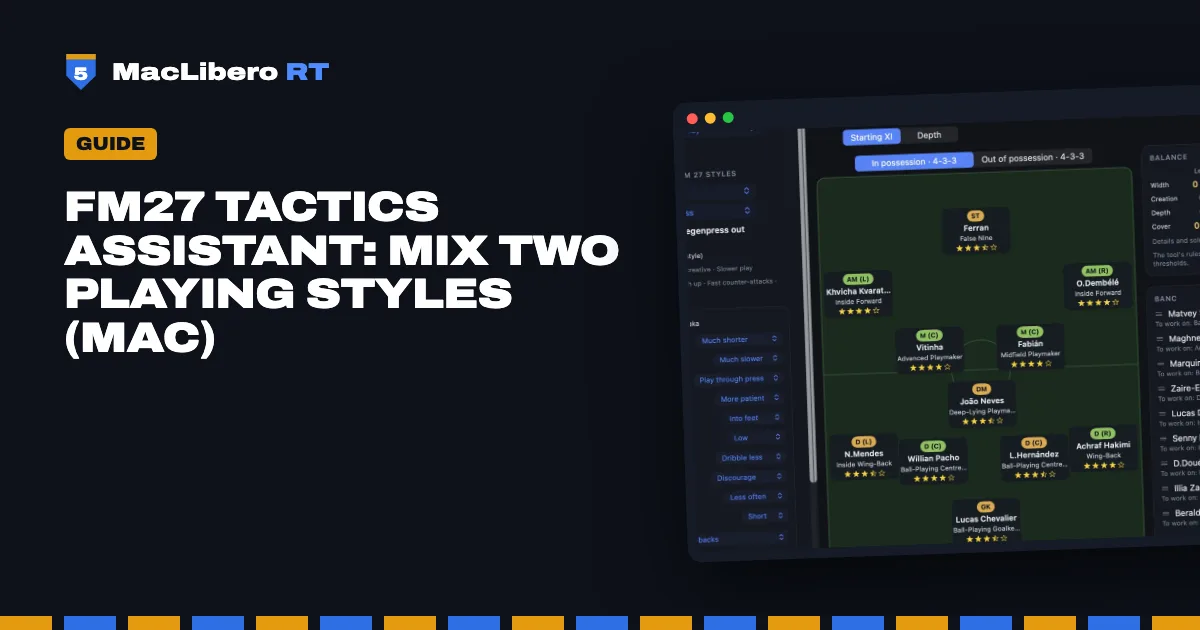
Setting up a tactic in Football Manager 27 means juggling some thirty team instructions, two formations (in and out of possession) and two roles per player. You often find out after the third goal conceded that your left flank was empty. The Tactics assistant in MacLibero RT, the native Mac app that reads your single-player FM 27 save, tackles this in order: a game plan built from the game's real presets, an XI that fits your squad, then a position-by-position balance check, all before kick-off.
Can you mix two playing styles in FM27?
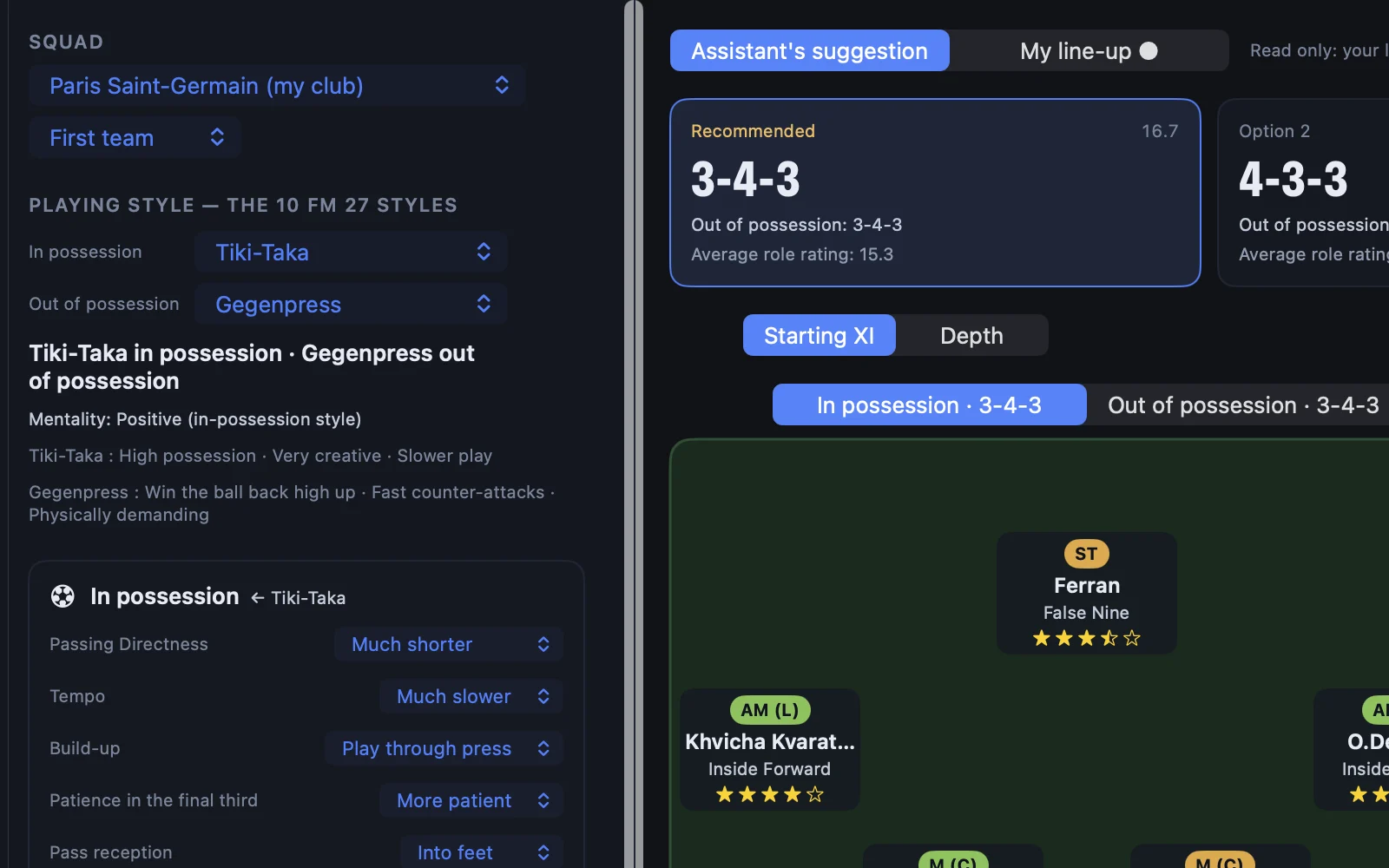
What it does. Under “Playing style — the 10 FM 27 styles” there are two menus: “In possession” and “Out of possession”. Pick, say, “Tiki-Taka” to attack and “Gegenpress” to defend. The instructions shown are each style's presets, read from FM 27's data. In-possession instructions come from the first style, out-of-possession ones from the second. For transitions, “When possession is won” follows the in-possession style and “When possession is lost” the out-of-possession style. The mentality is the in-possession style's.
Why it helps. FM 27's styles come as a package: choose Tiki-Taka and you also get its way of defending. Here you keep the best of each. If the two styles are too far apart (an attacking mentality with the ball and a very defensive one without), the assistant warns you that the team may be split in two.
Example. “Tiki-Taka in possession · Gegenpress out of possession”, in the style of Luis Enrique's PSG: Passing Directness “Much shorter”, Tempo “Much slower”, Build-up “Play through press”, Pass reception “Into feet”; out of possession, Line of Engagement “High press”, Defensive line “Higher”, Pressing intensity “Much more often”; “When possession is lost”: “Counter-press”; “When possession is won”: “Hold shape”. Mentality: Positive. Every instruction can still be set by hand: a departure from the style is marked “changed”, and “Reset styles” brings everything back to the game's values.
Which XI does the assistant suggest for your squad?
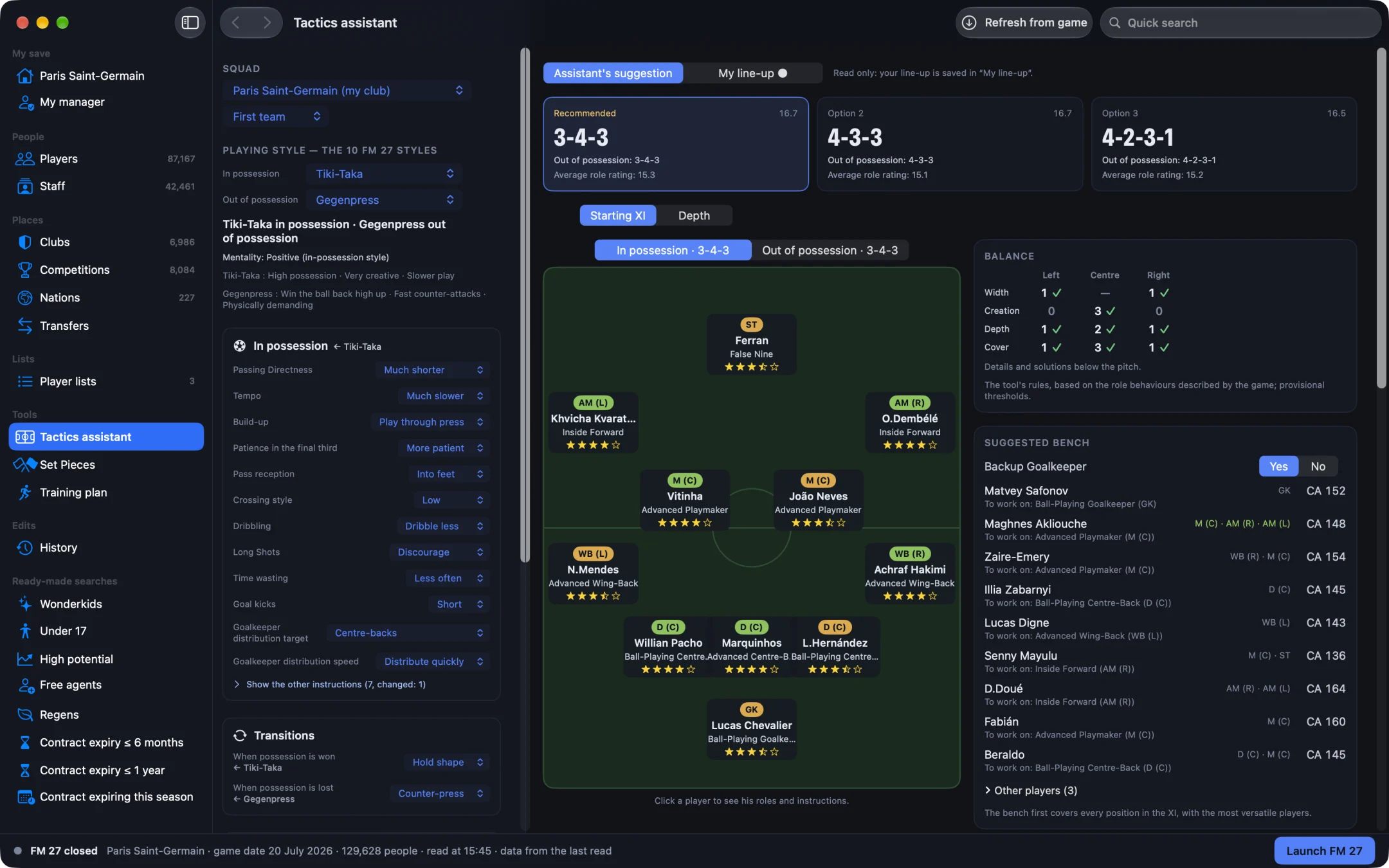
What it does. The assistant tries FM 27's 6 formations (4-3-3 DM Wide, 4-2-3-1 DM Wide, 4-2-2-2 DM Wide, 4-4-2 Diamond Narrow, 3-4-3 DM Wide and 5-1-2-2 DM WB) on your squad, injured players left out, and keeps three on a podium: “Recommended”, “Option 2” and “Option 3”, each with its out-of-possession shape and the average rating of its roles. Every player gets an in-possession and an out-of-possession role, rated from his attributes (the role's key attributes count three times, preferable ones twice) and his familiarity with the position. The roles FM 27 recommends for your two styles are favoured. You can set the formation yourself (“In possession formation”) or choose “Let the assistant choose”, and set the “Priority for the starting XI”: “Profile”, “Current form” or “Understanding”.
Why it helps. You start from a solid base instead of a blank page. And that base is already balanced: before showing it, the assistant fixes the roles that would leave a serious gap, such as a flank where nobody provides width.
Example. In our PSG save, with Tiki-Taka · Gegenpress, the assistant recommends a 3-4-3, with a 4-3-3 as “Option 2” and a 4-2-3-1 as “Option 3”. Next to the pitch sit the “Balance” card and the “Suggested bench”, with a “Backup Goalkeeper” toggle (Yes or No) and, for each substitute, the role he could work on. Switch the priority to “Current form” before a tight game and the XI makes room for fresh players.
How do you build your own XI in “My line-up”?
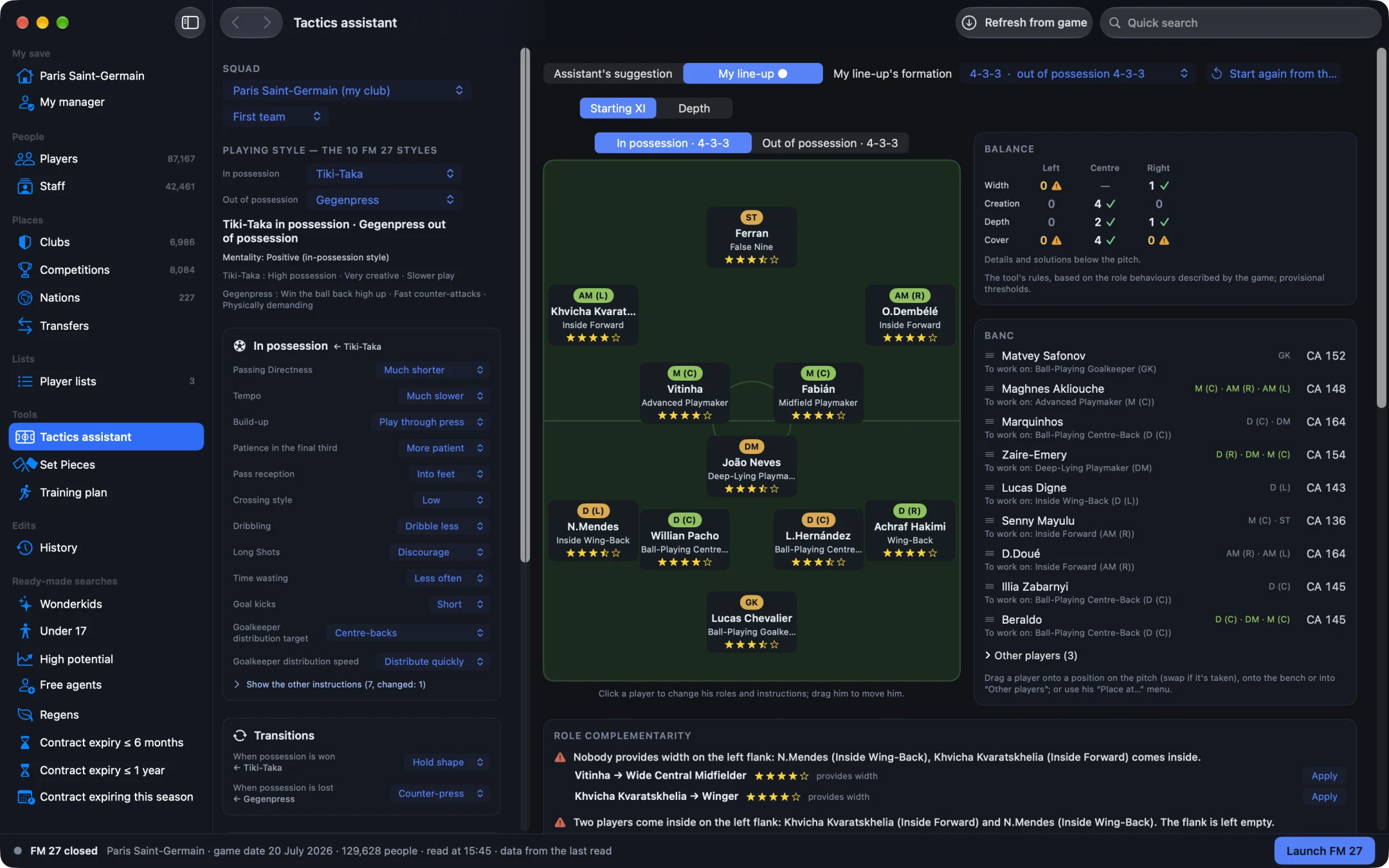
What it does. The assistant suggests, you decide. In “My line-up” you drag a player onto another position (the two swap if the spot is taken), onto the bench or out of the squad. Right-clicking a player opens his roles and commands such as “Put on the bench”, “Remove from the squad” or “View profile”. Any player can go in any position: his position familiarity is shown, and the assistant tells you when he is playing out of position. For each player, the “In Possession Role” and “Out-of-possession role” menus only list the roles FM 27 allows in that position in that formation, as in the game: a lone defensive midfielder doesn't get the same roles as a pair (the game has 40 roles in possession and 38 out of possession), each with stars estimating the player in that role. “Start again from the suggestion” restores the assistant's suggestion, after you confirm. A saved line-up in a formation the game doesn't offer moves to the closest of the 6, keeping your 11 players.
Why it helps. You never pick a role the game would refuse in that position, and the stars compare roles at a glance.
Example. Our PSG “My line-up” is a 4-3-3: Ferran as a False Nine, Kvaratskhelia and Dembélé as Inside Forwards, Vitinha as an Advanced Playmaker, Fabián as a Midfield Playmaker, João Neves at the base of midfield as a Deep-Lying Playmaker, Nuno Mendes as an Inside Wing-Back and Hakimi as a Wing-Back.
Which player instructions should each player get?
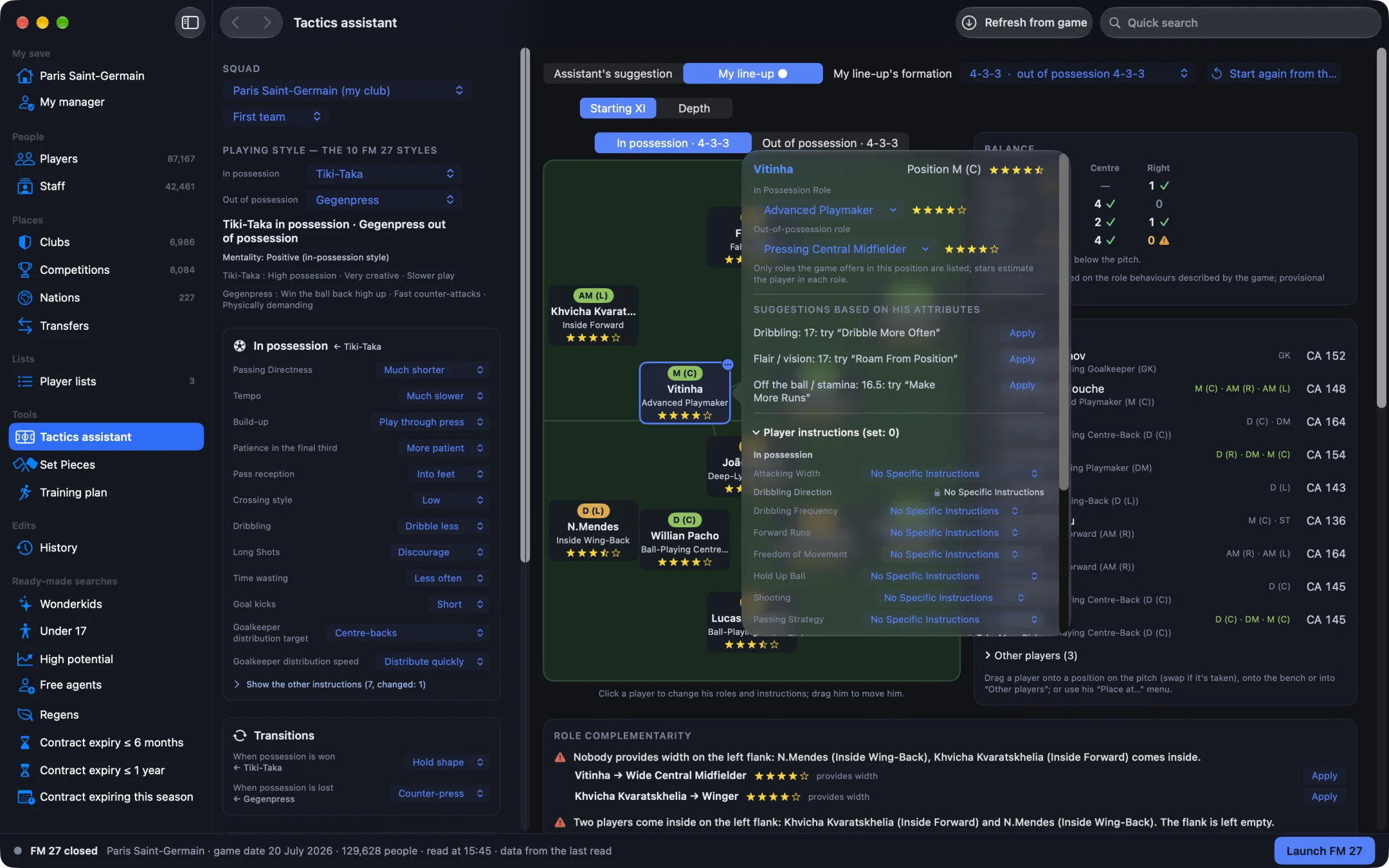
What it does. A player's window gathers his “Player instructions” in and out of possession, with FM 27's options. Above them, “Suggestions based on his attributes” offers instructions with the reason behind each one and its own “Apply” button: an excellent dribbler is offered “Dribble More Often”, a player with vision “Roam From Position”. Instructions the role locks in the game are greyed out with a padlock: “Padlock: set by the role in FM 27.”
Why it helps. The suggestions start from what your player can actually do, not from a generic rule. And the padlock stops you setting an instruction in the app that FM 27 won't let you change.
Example. Vitinha, in central midfield as an “Advanced Playmaker” in possession and a “Pressing Central Midfielder” out of possession: the assistant suggests “Dribble More Often”, “Roam From Position” and “Make More Runs”, based on his dribbling, vision and off-the-ball movement. Among his player instructions, “Dribbling Direction” carries the padlock: the role decides it in the game.
How do you spot an empty flank before the match?
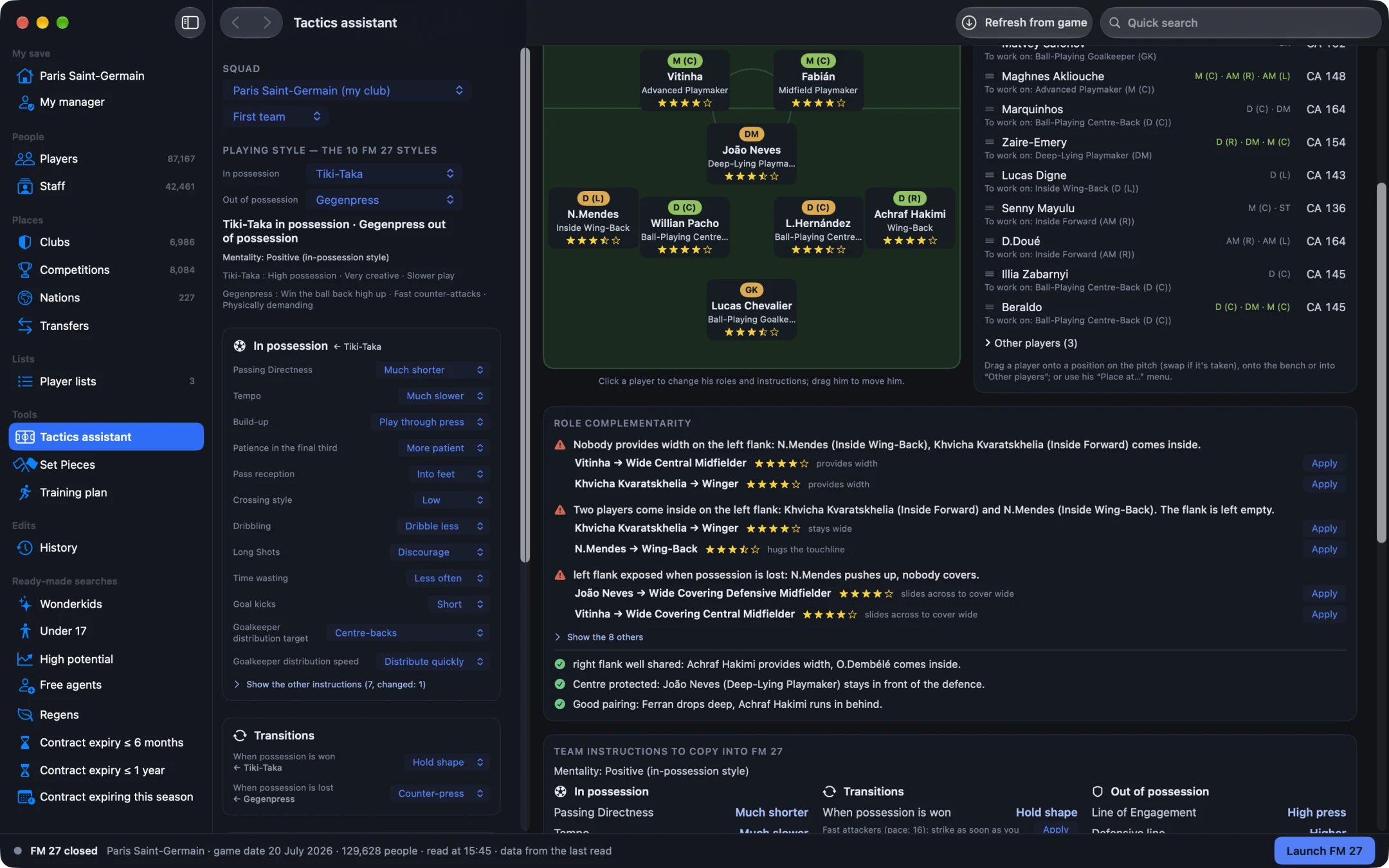
What it does. The “Balance” card crosses three channels (left, centre, right) with four lines: “Width”, “Creation”, “Depth” and “Cover” when possession is lost. Below the pitch, the “Role complementarity” card turns the gaps into written alerts, each with one or two fixes taken from your squad, their stars and an “Apply” button. It also lists what works.
Why it helps. These imbalances are spelled out before kick-off, with the names of the players involved and the fix. After each “Apply” the analysis runs again.
Example. In our line-up, Nuno Mendes as an “Inside Wing-Back” and Kvaratskhelia as an “Inside Forward” both come inside. “Two players come inside on the left flank […] The flank is left empty.”: the assistant suggests Kvaratskhelia as a “Winger” (“stays wide”) or Nuno Mendes as a “Wing-Back” (“hugs the touchline”). And “left flank exposed when possession is lost: N.Mendes pushes up, nobody covers.”: João Neves as a “Wide Covering Defensive Midfielder” or Vitinha as a “Wide Covering Central Midfielder”, who “slides across to cover wide”. On the right, all is well: “right flank well shared: Achraf Hakimi provides width, O.Dembélé comes inside.”
What's in the “Team instructions to copy into FM 27” card?
What it does. “Team instructions to copy into FM 27” gives the mentality and the in-possession, transition and out-of-possession instructions that differ from the game's default, with tips based on your squad, each with its own “Apply” button: with quick forwards, for example, the assistant suggests setting “When possession is won” to “Counter”.
Why it helps. You get a summary of the team instructions that change, in the order of the game's screen: to check your tactic once it's loaded in FM 27, or to copy it by hand if you prefer.
How do you set up every player in the squad, substitutes included?
What it does. Since version 1.0.11, the “Squad set up position by position” card sets up your whole squad, not just the XI. For each position a player covers in your formation (familiarity 15 or higher), it gives them the in-possession and out-of-possession roles that suit them best, then up to three instructions drawn from their strengths, each with its reason. Starters come first; “Substitutes and other positions” expands below. Colours show where each instruction comes from: “suggested”, “set by you” or “set by the role”.
Why it helps. When you make a substitution during a match, the substitute comes on with their own role and instructions, with nothing to set up again. Suggestions are measured against the rest of your squad: a modest club also gets instructions that make the most of its players' strengths.
Example. Vitinha starts at DM, but also covers both central midfield positions in the 4-3-3. Click Vitinha's name in the card:
- On the left, “Positions covered” lists Vitinha's three positions: DM (starter), then left and right central midfield, shown as M (C) (L) and M (C) (R). Choose M (C) (L).
- In the “In possession” tab, the assistant makes Vitinha an “Advanced Playmaker” and suggests “Dribble More Often” (Dribbling Very good), “Roam From Position” (Flair and Vision Very good) and “Shoot More From Distance” (Long Shots Good).
- Click “Keep” to confirm a suggestion, or “Remove”: a removed instruction is no longer suggested for that player in that position.
- Switch to the “Out of possession” tab for the defensive instructions, then click “Copy to M (C) (R)”: the right side gets the same setup.
Confirm everything at once. The card's “Apply to whole squad” button turns every suggested role and instruction (starters and substitutes, in all their positions) into your own settings after a confirmation; anything you set or removed yourself stays as it is. Suggestions also follow your team instructions, in and out of possession: no individual long balls if the team plays “Much shorter”, no reduced pressing if the press is intense, fewer flank roles if your game goes through the middle. An instruction you set by hand that contradicts the team is flagged. Player instructions still start from the player's strengths, but those that go with your tactic come first, and the panel says so: “matches ‘Pressing intensity: More often’”.
Can you export the tactic to FM 27?
What it does. Since version 1.0.10, the “Export to FM 27…” button writes the line-up shown to a tactic file that FM 27 loads. The file holds the in- and out-of-possession formation, mentality, team instructions, roles and player instructions. Since 1.0.11, the “Include each player's setup” box adds the setup of your whole squad: when a player takes up a position, FM 27 applies their role and instructions, in and out of possession. The file doesn't pick your players: FM 27 doesn't store the selection in the tactic file, so you place your XI in the game yourself. The export doesn't touch the tactic currently used in your save either: you load the file when you want. The export needs a licence.
Why it helps. No more copying some thirty settings and dozens of roles and instructions: the tactic reaches FM 27 exactly as you built it, substitutes included.
Example. For our PSG in 4-3-3:
- In “My line-up”, click “Export to FM 27…”.
- Enter a “Tactic name”, check the formation, leave “Include each player's setup” ticked, then click “Export”. The app confirms: “Tactic exported”.
- Then, in FM 27: Tactics › ▾ menu next to the tactic name › Load…, and pick it from the list.
- In FM 27, put your players in the positions of your line-up.
In a player's instructions, FM 27 then shows “Assign to” set to “Player”: that setup follows the player in that position, wherever they started the match.
How does the assistant work with the rest of the app?
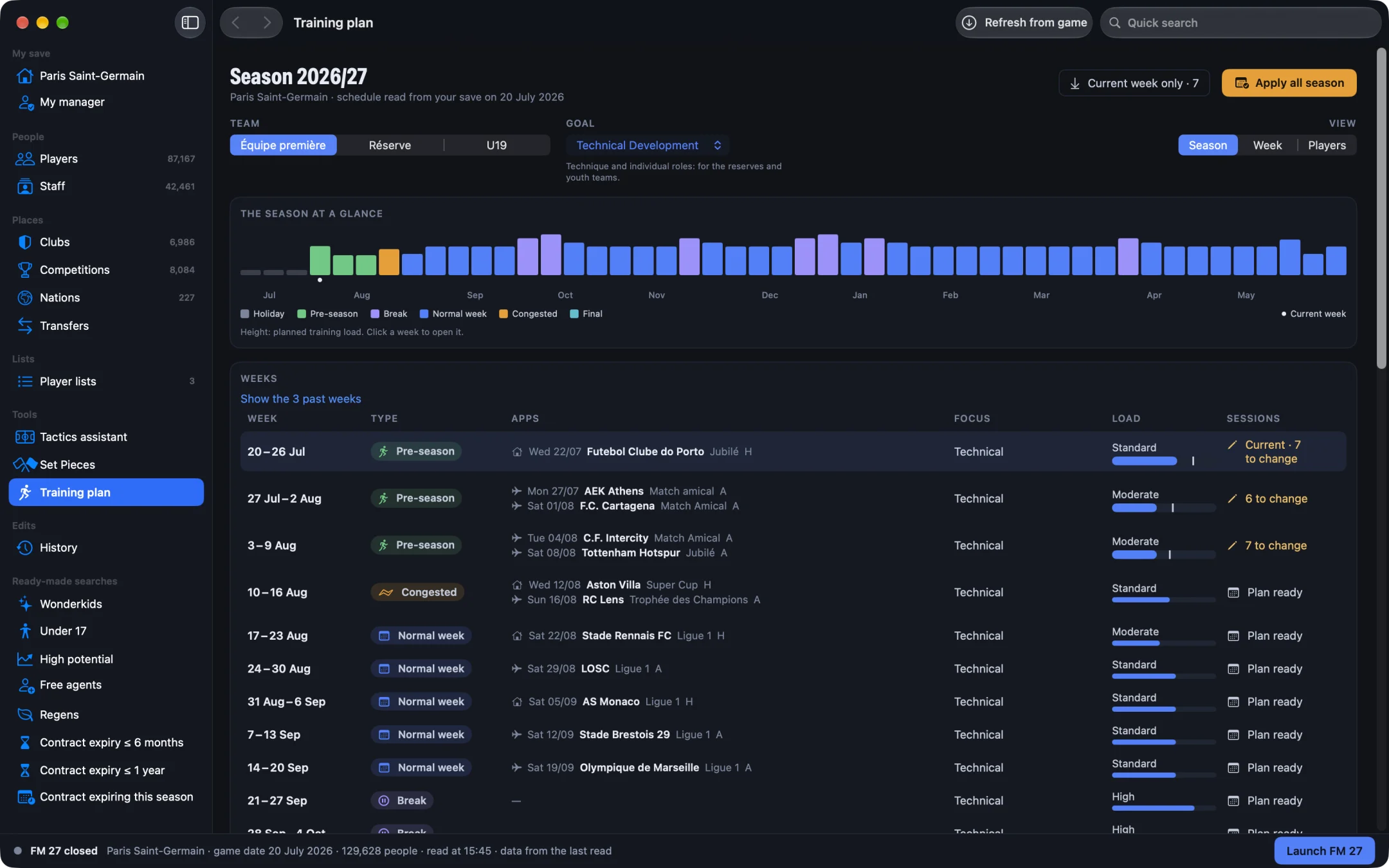
Training follows your two styles. The “Training plan” shares the Tactics assistant's choices. The season planner picks in- and out-of-possession sessions from your two styles, your pressing and your block height. The “Set Pieces” tab starts from the same XI. To go further player by player, see how to set FM27 individual training.
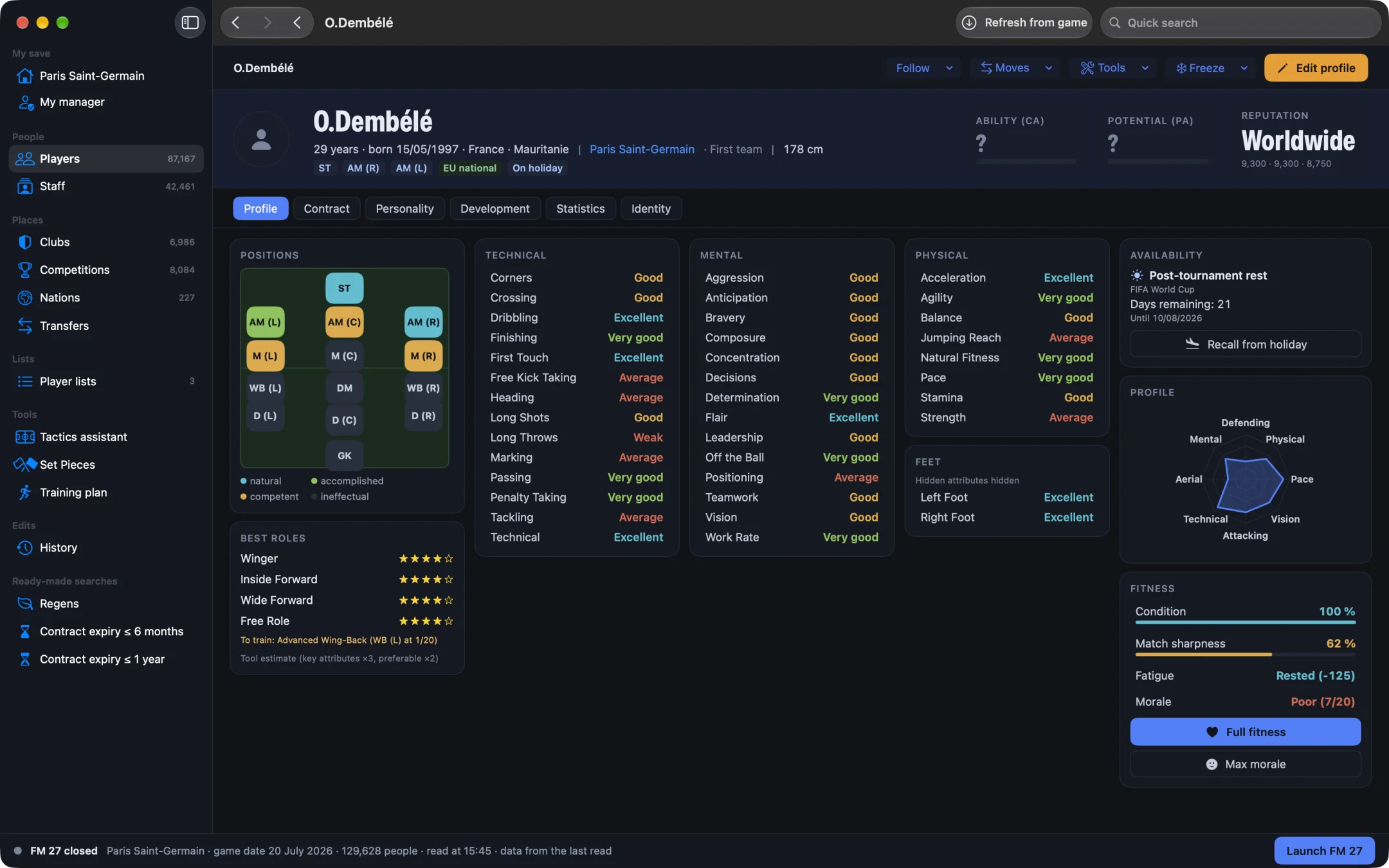
Play “Like a manager”. With “Like a manager” under “What you see of players”, the assistant stops using CA: it picks the XI from visible attributes. The three levels are explained in the article on player view settings.
How do you set up Luis Enrique's PSG, step by step?
- Open MacLibero RT, click “Launch FM 27”, load your save, then click “Refresh from game” (⌘R).
- In the sidebar, click “Tactics assistant”. Under “Squad”, your club is at the top: “Paris Saint-Germain (my club)”.
- On the “In possession” line, choose “Tiki-Taka”; on the “Out of possession” line, choose “Gegenpress”. The heading becomes “Tiki-Taka in possession · Gegenpress out of possession” and the mentality “Positive”.
- Look at the “Recommended” formation, then click a player: your changes create “My line-up”, and the suggestion stays available.
- Under “My line-up's formation”, pick the 4-3-3. Click João Neves at the base of midfield (DM) and choose “Deep-Lying Playmaker” under “In Possession Role”: the Regista no longer exists in FM 27, and this is the role that runs the game in front of the defence. Put Vitinha in as an “Advanced Playmaker” and look at his “Suggestions based on his attributes”.
- Scroll to “Squad set up position by position”, expand “Substitutes and other positions” and click a substitute to keep or remove their instructions.
- Scroll to “Role complementarity”. Nuno Mendes and Kvaratskhelia both come inside: click “Apply” next to the fix you prefer, Kvaratskhelia as a “Winger” to hold the width, or a midfielder who covers the flank when possession is lost, such as João Neves as a “Wide Covering Defensive Midfielder”. The analysis runs again straight away.
- Click “Export to FM 27…”, then “Export”. In FM 27: Tactics › ▾ menu next to the tactic name › Load…, pick your tactic from the list and place your XI: every player arrives with their setup.
What are the Tactics assistant's limits?
Let's be clear: the assistant doesn't change the tactic currently used in your save. The export writes a tactic file that you load into FM 27 yourself, and you still pick your players in the game. The assistant suggests at most three instructions per position. Stars and alerts are the tool's estimates, built from the role behaviours the game describes: the match engine has the final say. The in- and out-of-possession roles, on the other hand, are FM 27's own (the Regista is no longer offered, hence the “Deep-Lying Playmaker” for João Neves). For set pieces with the same XI, see how to pick the best set piece takers in FM27.
Single-player FM 27 saves only. The Tactics assistant reads your save: it changes neither the game nor your save file. The export writes a separate tactic file that you load into FM 27.
What you need
MacLibero RT runs on Macs with Apple Silicon or Intel, macOS 15 or later, with the Steam or Epic Games version of FM 27. Without a licence you pick your styles and see the suggested XI on the pitch. Balance, role complementarity, the cards to copy, the squad set up position by position, the “Depth” tab and “Export to FM 27…” need a licence: €6.99 once for FM27, on up to 3 Macs (see pricing and the FM27 Mac editor comparison).
Questions
Can you import the assistant's tactic into FM 27?
Yes, since version 1.0.10. “Export to FM 27…” writes your line-up to a tactic file: in- and out-of-possession formation, mentality, team instructions, roles and player instructions, plus, with “Include each player's setup”, the role and instructions of every squad player for each position they cover. Then, in FM 27: Tactics › ▾ menu next to the tactic name › Load…, and pick it from the list. You still pick your players in FM: the tactic file doesn't hold the selection. The export needs a licence: €6.99 once for FM27, on up to 3 Macs.
Do substitutes get their instructions too?
Yes, since version 1.0.11. The “Squad set up position by position” card sets up every player in your squad, starters and substitutes alike, for each position they cover in your formation (familiarity 15 or higher): an in-possession role, an out-of-possession role and up to three suggested instructions. Once the tactic is exported, FM 27 applies that setup when the player takes up that position.
Can you mix two FM 27 playing styles?
Yes. Pick an “In-possession style” and an “Out-of-possession style” from the game's 10 styles, for example Tiki-Taka and Gegenpress. The instructions come from the presets read in FM 27's data; the mentality and “When possession is won” follow the in-possession style, “When possession is lost” follows the out-of-possession style.
Is the Regista still in FM 27?
No, it is no longer offered. For a deep playmaker, use the “Deep-Lying Playmaker”, a defensive midfield (DM) role: it's João Neves's role in our PSG example.
Where do the suggested roles come from?
They are FM 27's own roles: 40 in possession and 38 out of possession, and only the ones the game allows in that position are listed. The stars are the tool's estimate, based on the player's attributes and position familiarity.
Is the Tactics assistant free?
Partly. Without a licence you pick your styles and see the suggested XI on the pitch. Balance, role complementarity, the cards to copy, the squad set up position by position, the Depth tab and the export to FM 27 need a licence: €6.99 once for FM27, on up to 3 Macs.