Guide · 9 November 2026
FM27: hide CA and PA and play like a real manager
To hide CA and PA in FM27, open MacLibero RT's Settings, “General” tab, and pick “Like a manager” under “What you see of players”. CA, PA and hidden attributes disappear from the app, and sorts and filters that would give them away are turned off. Nothing in your save is changed.

An editor shows everything: current ability (CA), potential ability (PA), hidden attributes. That's handy when you edit a save, much less so when you want a realistic Football Manager 27 career where you discover players the way your staff would. Since version 1.0.9, MacLibero RT, the native Mac app that reads your single-player FM 27 save, lets you choose what you see of players, in three levels.
How do you hide CA and PA in FM27 with MacLibero RT?
- Open MacLibero RT, then the MacLibero RT ▸ Settings… menu (⌘,).
- Stay on the “General” tab.
- Under “What you see of players”, pick “Like a manager”. Each level shows its explanation under its name, so you can compare without clicking.
- To go further, pick “Like in FM” and tick “Attributes in words”.
- Close Settings: the player profile, lists and comparison follow your choice.
To switch in one go without opening Settings: “Shortcut: ⇧⌘H switches between “Everything” and “Like a manager”.” Handy for a quick look at a player before going back to the fog.
What's the difference between “Everything”, “Like a manager” and “Like in FM”?
The three levels go from most open to most realistic. The quoted sentences are the app's own.
- “Everything”: “CA, PA and hidden attributes: everything is visible, like in an editor.” This is the default.
- “Like a manager”: “CA, PA and hidden attributes are hidden. Sorts and filters that would give them away are turned off.” You still see the usual attributes, but no potential rating, no consistency or injury proneness. You can't sort a list by PA to unmask the best prospect either.
- “Like in FM”: “On top of that: on the profile and in the comparison, attributes your scouts don't know well appear as a range (6–8) or “?”, based on your save.” MacLibero RT asks the game what your staff knows about each player, just like FM 27's profile screen: real scout knowledge.
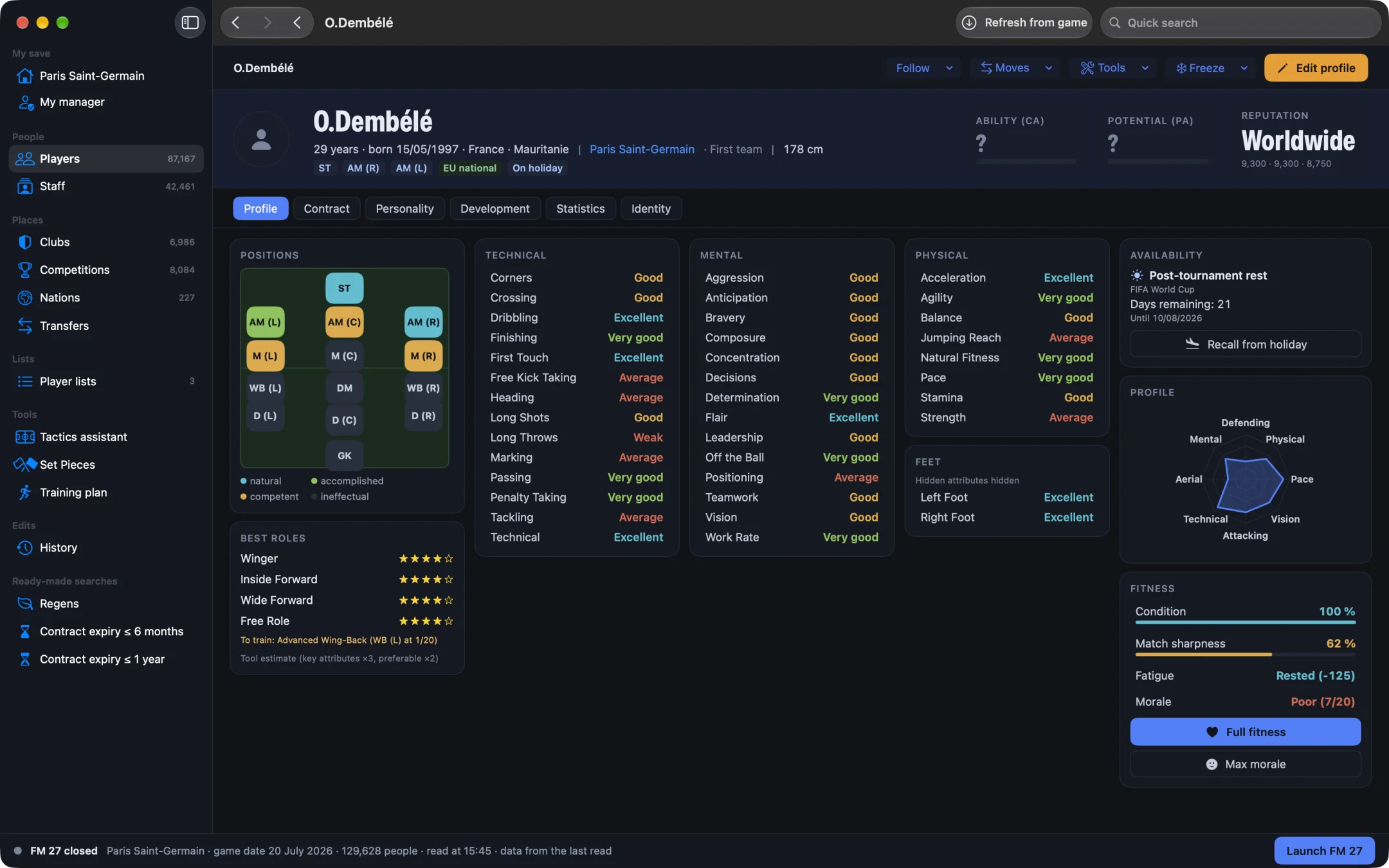
With “Like in FM”, players at your own club stay fully known, as in the game. And if you've turned off attribute masking in your save, everything shows exact values: the level follows what FM 27 would show you.
What does “Attributes in words” do?
It replaces the numbers out of 20 with words, like a staff report, and shows roles in stars. It also hides CA and PA, and choosing “Everything” turns it off. Each word covers a set range, shown in its tooltip:
- Weak: 1 to 5 out of 20;
- Average: 6 to 10;
- Good: 11 to 14;
- Very good: 15 to 17;
- Excellent: 18 to 20.
Sorts and filters still use the real values without showing them: an “at least Good” filter keeps players at 11 out of 20 or more. With “Like in FM”, a range becomes, for example, “Average to Good”, and an attribute your scouts know nothing about reads “Unknown”. Only “Edit profile” shows numbers, flagged “Real numbers”: you have to see a value to change it. The words come back as soon as you leave editing.
Why is “Like in FM” greyed out on my Mac?
This level asks the game what your scouts know, so it isn't available on an Intel Mac, or when FM 27 runs under Rosetta. The tooltip says so: “Unavailable when FM 27 runs as Intel or under Rosetta: this action goes through the game. On an Apple Silicon Mac, relaunch FM 27 natively.” “Everything”, “Like a manager” and “Attributes in words” work on every Mac, Intel included.
Is this the opposite of seeing masked attributes?
Yes, they are opposite goals:
- You want less information to play realistically: that's this setting, in the app, without touching your save.
- You want more information in FM 27 itself, without ranges: read how to see masked attributes in FM27 without scouting.
If you change your mind mid-season, switch back to “Everything”: consistency, important matches and the other hidden attributes in FM27 come back on the profile. To choose between two targets blind, use the player comparison: it follows the level you picked.
Does it need a licence?
No. “What you see of players” and “Attributes in words” are free display settings: they write nothing to the game. The licence is for edits and advanced tools (see pricing and the FM27 Mac editor comparison).
Single-player saves only. The setting is stored on your Mac and stays in place from one session to the next.
Questions
How do I hide CA and PA in FM27?
In MacLibero RT, open Settings ▸ General and pick “Like a manager” under “What you see of players”. CA, PA and hidden attributes are hidden, and sorts and filters that would give them away are turned off. The ⇧⌘H shortcut switches between “Everything” and “Like a manager”.
What's the difference between “Like a manager” and “Like in FM”?
“Like a manager” hides CA, PA and hidden attributes. “Like in FM” adds your scouts' knowledge: on the profile and in the comparison, attributes your scouts don't know well appear as a range (6–8) or “?”, based on your save.
Why is “Like in FM” greyed out?
This level asks the game. It is unavailable when FM 27 runs as Intel or under Rosetta, so on an Intel Mac. On an Apple Silicon Mac, relaunch FM 27 natively. “Everything” and “Like a manager” work on every Mac.
Does it change my save?
No. These are MacLibero RT display settings: nothing in your save is changed. To change attribute masking inside FM 27 itself, use the “Masked attributes visible” option in “My manager”.
Does it need a licence?
No. “What you see of players” and “Attributes in words” are free, from MacLibero RT 1.0.9.