Guide · 1 November 2026
FM27 work permit editor: grant, change or remove a work permit
To get a work permit in FM27 without waiting on the game, open the player's profile in MacLibero RT, go to the “International” tab and use the “Work permits” card: type a club's name under “Grant a permit for a club's country”, click the club, and FM 27 itself grants the permit for that club's country. The same card changes a permit's year, switches it between “Permanent” and “Renewable”, moves its review date, or removes it.
In Football Manager 27, a foreign signing can be held up because he has no work permit for the country his club plays in. MacLibero RT, the native Mac app that reads and edits your single-player FM 27 save, lets you sort it out from the player profile. Languages, homegrown status and appearance come with it.
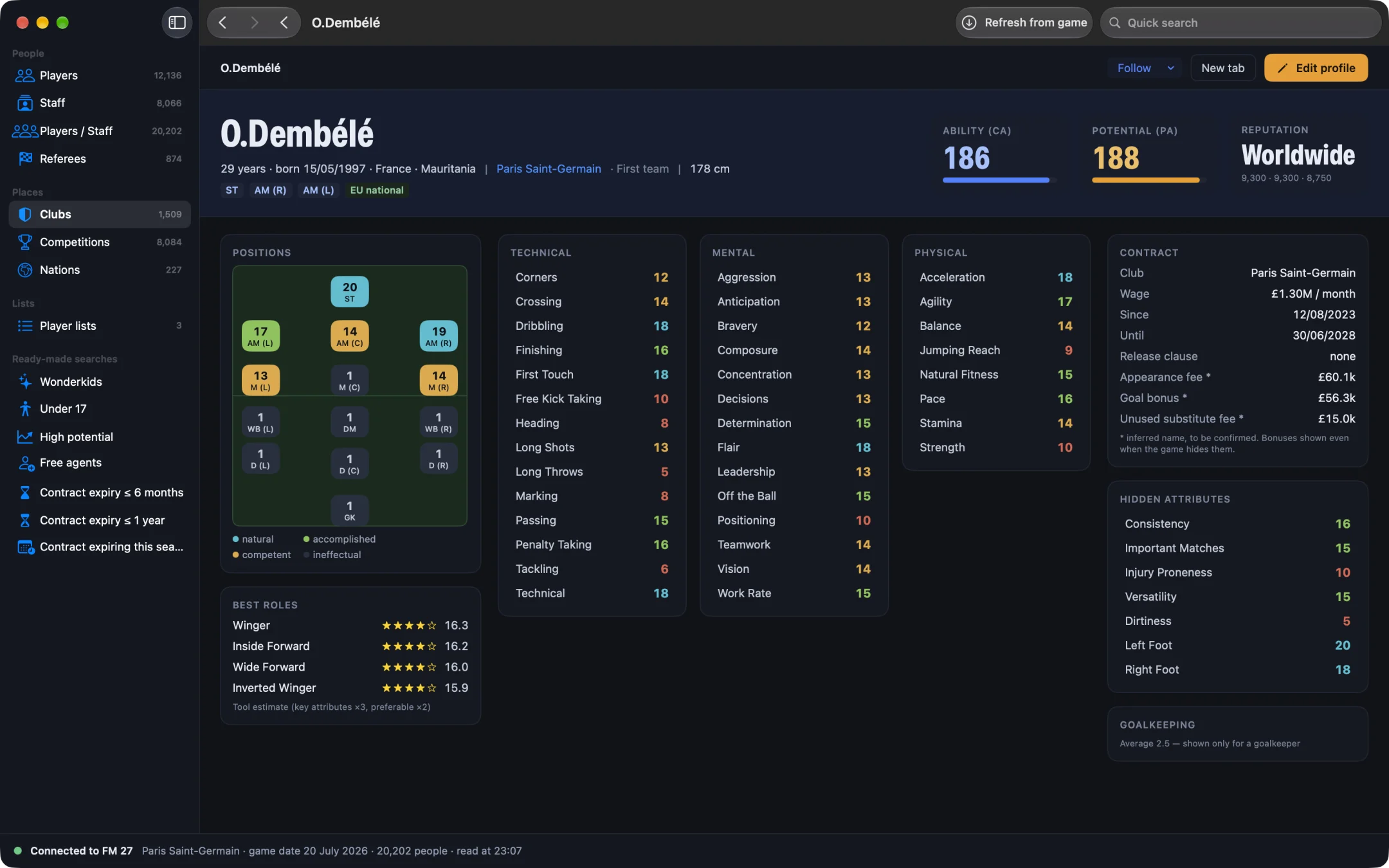
How do you get a work permit in FM27?
- Open MacLibero RT, click “Launch FM 27”, load your save, then click “Refresh from game” (⌘R).
- Open the player's profile and click the “International” tab. The “Work permits” card lists each permit he holds, country by country, or says “No work permit.”
- Under “Grant a permit for a club's country”, tick “Renewable (reviewed every year)” if you want a renewable permit. Leave it unticked for a permanent one.
- Type at least two letters of a club's name in the “Club: name” field. Up to six clubs appear, each with its country.
- Click the club. FM 27 grants the permit for that club's country, and the app confirms that the player has a work permit for that country.
The club only tells the game which country you mean: the player does not move. In our test on a copy of a PSG save, Ousmane Dembélé received an English permit this way, created by the game itself, and then lost it again.
Can you make a work permit permanent?
Yes. Every permit in the card has three settings:
- “Year”, with the − and + buttons.
- “Permanent” / “Renewable”: switch from one to the other.
- “Review”: the yearly review date, shown only for a renewable permit (a permanent permit has none).
These three are written in place, logged in History and can be undone, like most edits (see how to undo editor changes in FM27). If the game's list of permit reviews has no room left, the “Renewable” option is greyed out; switching to “Permanent” always works.
How do you remove a work permit?
Click the bin next to the country (“Remove this permit”), then confirm with “Remove”. The app warns you first that a permit granted again is a new record.
As the card itself says, “Adding and removing are done by FM 27 itself: they can't be undone from the History.” It works like transferring a player in FM27 or loaning out or releasing a player: the game runs its own function, so save your game before you grant or remove a permit, and reload that save to go back.
Which Macs can grant or remove a permit?
Granting and removing call functions inside the game, so they are tied to one exact version: an Apple Silicon Mac and the current FM 27 build (27.0.0, build 2486716). On an Intel Mac or another build, the app refuses clearly instead of trying anything. Keep FM 27 on a still screen, not while it is processing a day or a match.
How do you edit a player's languages in FM27?
Open the “Identity” tab and the “Languages” card.
- The native language sits at the top, marked “Native language”. It cannot be removed: in our test, removing French from Dembélé was refused.
- Every other language shows a level out of 10, with − and + buttons. As the card says, “Level 10: fluent. The game improves languages over time.”
- To add one, choose it in “Add a language…”, set the level, then click “Add”.
- To remove one, click “Remove this language”.
Adding and removing are done by FM 27 itself (Apple Silicon Mac), and unlike permits they can be undone from History. In our test, Dembélé's English went from 5 to 9 and back, and Spanish was added by the game, then removed.
The “Country and national team” card, on the “International” tab, also lets you change the date a player “Arrived in the country on”, with the number of days he has spent there. The date cannot be later than the current day in your save.
Homegrown status: how do you make a player club-trained?
Open the “Contract” tab and the “Club-trained” card. It shows “Club-trained” and “Nation-trained” with the rule that applies, or “Neither club-trained nor nation-trained.”
- Pick a “Rule”: “3 seasons between ages 15 and 21” or “3 years before age 21”.
- Click “Trained at” followed by the player's current club. The player becomes club-trained and nation-trained.
The card spells out why it matters: it “Counts towards club-trained and association-trained quotas (UEFA and league squads).” In our test, Désiré Doué was made trained at PSG, and FM 27's Eligibility screen then showed “Homegrown 15-21 — Fully Eligible” for PSG; adding the same status twice was refused. “Remove this status” takes it away. Like languages, it uses the game's own function (Apple Silicon Mac) and can be undone from History.
Does changing appearance change the player's photo?
No. The “Appearance” card on the “Identity” tab has five settings: “Ethnicity (code)”, “Skin tone”, “Hair colour (code)”, “Hair length” (from “Shaved” to “Very long”) and “Body type”. They are the game's own codes: ethnicity, skin tone and hair colour have no names. Your changes stay highlighted until you click “Apply to game”, or “Cancel”.
These codes are only used for the 3D player and for the faces the game generates, such as regens. A real player keeps his real photo: after we changed Dembélé's hair, his FM 27 profile still showed his photo. We have not yet checked the 3D player in a match ourselves.
Single-player saves only. Keep a copy of any save you care about before editing it.
What you need
Viewing permits, languages and homegrown status is free. Writing them to the game needs a licence: €6.99 once for FM27, on up to 3 Macs (see pricing and the FM27 Mac editor comparison). We tested every part of this guide on an Apple Silicon Mac.
Questions
How do you get a work permit in FM27?
With MacLibero RT on an Apple Silicon Mac: open the player's profile, “International” tab, “Work permits” card. Under “Grant a permit for a club's country”, type a club's name and click it. FM 27 itself grants the permit for that club's country.
Can you make a work permit permanent in FM27?
Yes. Each permit in the “Work permits” card has a “Permanent” / “Renewable” switch, a “Year” and, for a renewable permit, a “Review” date. These changes are logged in History and can be undone.
Can you remove a work permit, and undo it?
You can remove one with “Remove this permit”, but not undo it: adding and removing are done by FM 27 itself, so they can't be undone from History. Keep a copy of your save first.
Does changing a player's appearance change his photo?
No. Hair, skin tone, body type and ethnicity only affect the 3D player and the faces the game generates. A real player keeps his real photo in FM 27.
Does it work on an Intel Mac?
Granting or removing a permit, adding or removing a language and setting homegrown status use the game's own functions: Apple Silicon Mac and the current FM 27 build (27.0.0, build 2486716) only. The other edits are written in place; we tested everything on an Apple Silicon Mac.